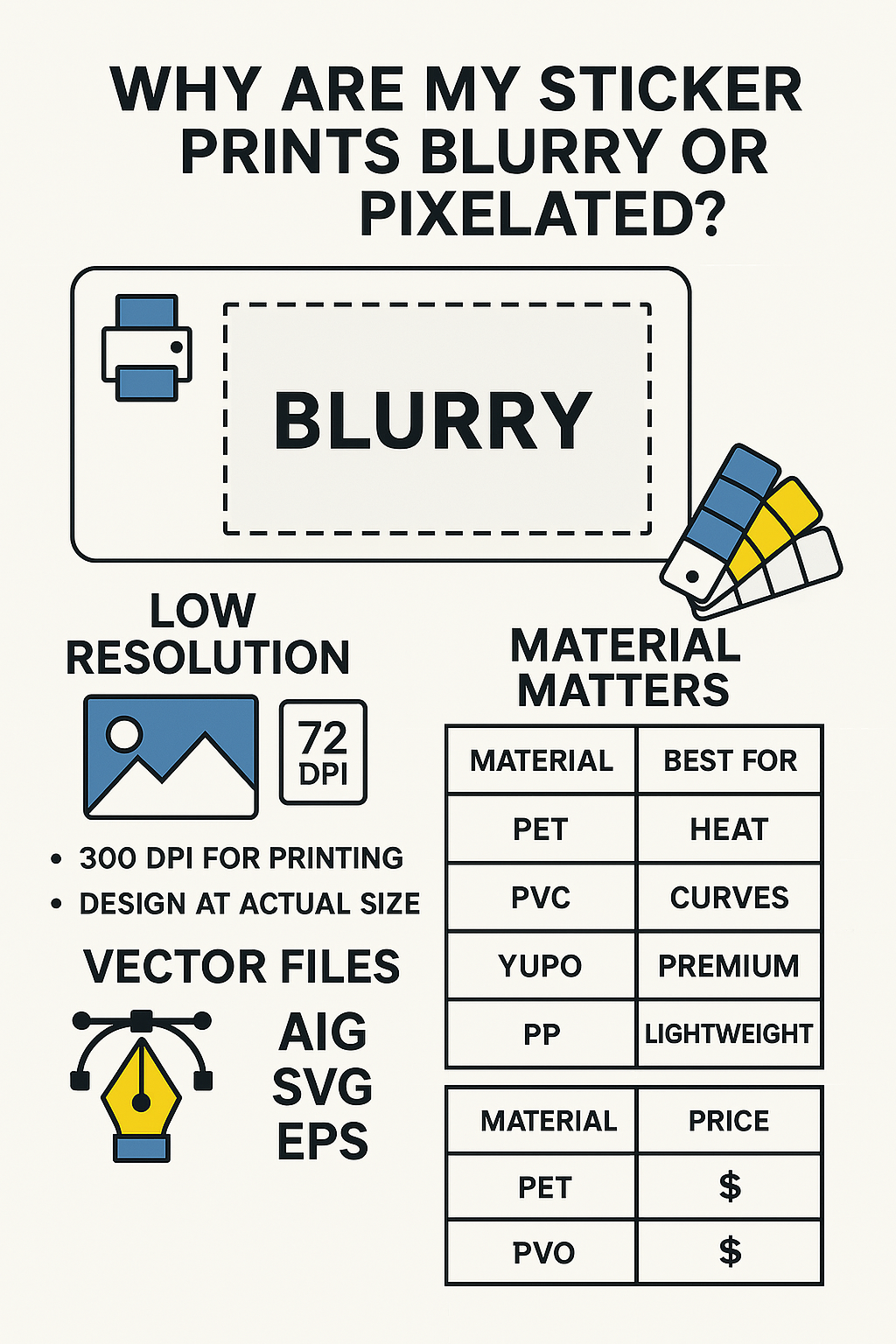
Blurry sticker prints aren’t just disappointing—they can affect the professionalism of your product packaging or promotional material. At Siang Heng Printing Services, we regularly help clients troubleshoot this, and the most common causes are low-resolution artwork and incompatible file formats.
📸 Screen Looks Sharp, But Prints Don’t
Designs saved for digital viewing (like on your phone or laptop) are typically 72 DPI (dots per inch). While they appear crisp on screen, this resolution is too low for print.
✅ For professional sticker printing:
- Use 300 DPI
- Always design at full print size
- Avoid enlarging low-res graphics—it magnifies blur
✏️ Go Vector for Logo & Line Art
Vector files scale perfectly and retain sharpness at any size. Recommended formats:
- AI (Adobe Illustrator)
- SVG (Scalable Vector Graphics)
- EPS (Encapsulated PostScript)
These are ideal for logos, illustrations, and text-heavy stickers.
🧵 Choose the Right Sticker Material
Even with a flawless file, material choice influences the final clarity. Here’s a breakdown with price tiers:
| Material | Best Use | Features | 💰 Price Tier |
|---|---|---|---|
| PET | Heat-prone surfaces | Durable, heat-resistant | 💎 Premium |
| PVC | Curved packaging | Flexible, waterproof | 💵 Mid-range |
| Yupo | Premium labels | Tear-resistant, smooth finish | 💎 Premium |
| PP (Polypropylene) | Lightweight packaging | Moisture-resistant, slightly frosted appearance | 💵 Mid-range |
| Paper Stickers (Woodfree / Mirrorkote) | Indoor, budget use | Economical, not waterproof | 🪙 Budget |
📦 Summary of What You Need for Sharp Stickers
To ensure print clarity:
- ✅ Start with 300 DPI artwork
- ✅ Use vector files where possible
- ✅ Choose the right sticker material
- ✅ Avoid saving your artwork in Word or screenshot formats
- ✅ Let us do a free file check before printing
🎯 Ready to Print?
Upload your artwork to Siang Heng Printing Services and our team will guide you on:
- Resolution review
- Material recommendation
- File format compatibility
From product labels to custom decals—we print stickers that stick and look sharp doing it.
🖼️ How to Check Your File’s Resolution Before Uploading
Not sure if your artwork is print-ready? In Photoshop, go to Image > Image Size and check the resolution field — it should read 300 pixels/inch. In Canva, resolution isn’t always shown directly, so it’s safer to design at your sticker’s actual print size rather than scaling up a small design later. If you’re working from a photo taken on your phone, check that the image is at least 1800×1800 pixels for a standard 6cm sticker — smaller than that, and blur becomes likely once printed.
❔ Frequently Asked Questions
Can you fix a blurry image for me?
We can sometimes improve slightly low-res images, but we can’t add detail that isn’t there. If a file is significantly under 300 DPI, we’ll flag it and suggest a redesign rather than print something you won’t be happy with.
What’s the minimum sticker size for text to stay readable?
It depends on your font, but as a general rule, keep text no smaller than 6pt for standard paper stickers, and slightly larger for textured materials like Yupo or PP.
Do you offer a free proof before printing?
Yes — our team reviews your file for resolution and format issues before production, and we’ll flag any concerns so you can fix them before your order goes to print.
Avoiding blurry sticker prints starts with the right file setup. For a general primer on print resolution standards, see this resolution reference. If you’re ready to order, browse our custom sticker printing range, or check out our die cut sticker options for precisely shaped labels. Whatever the cause of blurry sticker prints in your file, our team is happy to check it before you order.